


Table of Contents Show
Are you thinking about saying goodbye to Threads, the Twitter-like platform on Instagram? If you’re wondering how to get rid of your Threads account, you’re in the right spot. Let us get into the details of How to Deactivate Your Threads Account?
But here’s the not-so-great news: If you want to say goodbye to Threads, you’ll also have to bid farewell to your Instagram account that you used to get into Threads.
According to the Threads Privacy Policy, found in the Instagram Help Center, you can deactivate your Threads profile whenever you want. However, to actually erase your Threads profile, you’ll need to delete your Instagram account.
Put simply, if you decide to remove your Instagram account, your Threads account will also vanish. However, if you’d rather not say goodbye to your Instagram account (completely understandable), you should explore other choices.
If you want to continue using your account privately, you can set your Threads profile to be hidden from others, uninstall the app, and stop using it. However, please note that your account may still show up in search results.
To ensure your account is not visible and your information is hidden, it’s best to deactivate your Threads account. Deactivating your Threads account will make your profile, posts, and engagement history inaccessible to others, and you can reactivate it later if you change your mind.
How to Deactivate Your Threads Profile?
If you’ve decided that Threads is not the right platform for you, here are the steps to deactivate your Threads account.
To turn off your Threads profile, follow these steps:
- Click the gear icon at the upper right corner of your Threads profile.
- Choose ‘Account.’
- Pick ‘Deactivate Profile.’
- Click the ‘Deactivate Threads profile’ button.
Detailed Steps to Deactivate Your Threads Profile
1. Select the settings icon in the top right corner of your Threads profile.

At the time of this writing you can only deactivate your Threads account, rather than delete your Threads account, in the Threads app. To begin the process of deactivating your Threads account, open your profile tab and click on the Settings menu icon in the top right corner. The icon looks like two lines stacked horizontally, with the lower line being a bit shorter.
2. Select ‘Account’
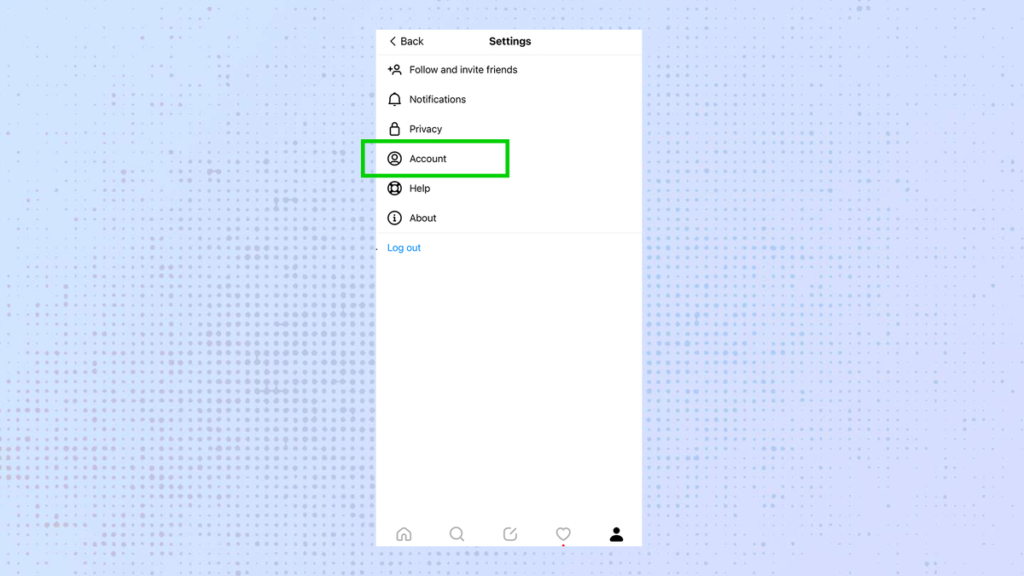
Once you’re in the Settings menu, you’ll see a handful of settings categories. While we’d normally recommend exploring the different settings to learn about using Threads, we know you’re here to deactivate your account. Click on the Account option to proceed.
3. Select ‘Deactivate Profile’

In the Account menu, you’ll find two options that relate to Threads specifically. There are a couple of informational pages and other account settings you can manage via Instagram, but as for Threads, you’ll see the option to Take a break and an option to Deactivate profile. Select Deactivate profile.
4. Press the ‘Deactivate Threads profile’ button

Are you sure you want to deactivate your Threads profile? The app will inquire if you want to do this, explaining what happens when you deactivate your account. Deactivation will conceal your profile, posts, replies, and likes until you decide to come back. If you’re ready, press the “Deactivate Threads Profile” button at the bottom of your screen. A confirmation pop-up will appear, asking, “Are you sure?” Click “Deactivate” once more. Your Threads account will then be deactivated.
