


Table of Contents Show
Are you tired of cluttered browser extensions just to capture full-page screenshots? We all know the trusty Snipping Tool (or Snip & Sketch in newer Windows versions in India). It’s been our go-to for quickly grabbing parts of the screen for ages. Need to share an error message with tech support? Snip it! Want to highlight a great deal you found online? Snip it!
But what if you need to capture an entire webpage? You know, the whole scrolling shebang? Traditionally, this might have sent you searching for browser extensions. And while there are some helpful webpage capture tools out there, wouldn’t it be nice to do it without installing anything extra and keep your browsing experience clean and efficient here in India?
Well, here’s a little secret weapon you might not know about that works seamlessly alongside your Snipping Tool: Chrome/Edge Developer Tools!
Capture the Full Page Without Extensions: Here’s How
That’s right! Your browser already has a built-in tool that lets you grab those long, scrolling screenshots. It’s a handy trick for anyone who needs to document entire web pages, whether for work, study, or sharing information with friends and family across India. Here’s the magic:
- Open the webpage you want to capture.
- Open Developer Tools. You can do this by:
- Right-clicking anywhere on the page and selecting “Inspect” (or “Inspect Element”).
- Using the keyboard shortcut: Ctrl + Shift + I (Windows/Linux) or Cmd + Option + I (Mac).
- Once Developer Tools is open, press Ctrl + Shift + P (Windows/Linux) or Cmd + Shift + P (Mac) to open the Command Menu.
- In the search bar that appears, type “screenshot”.
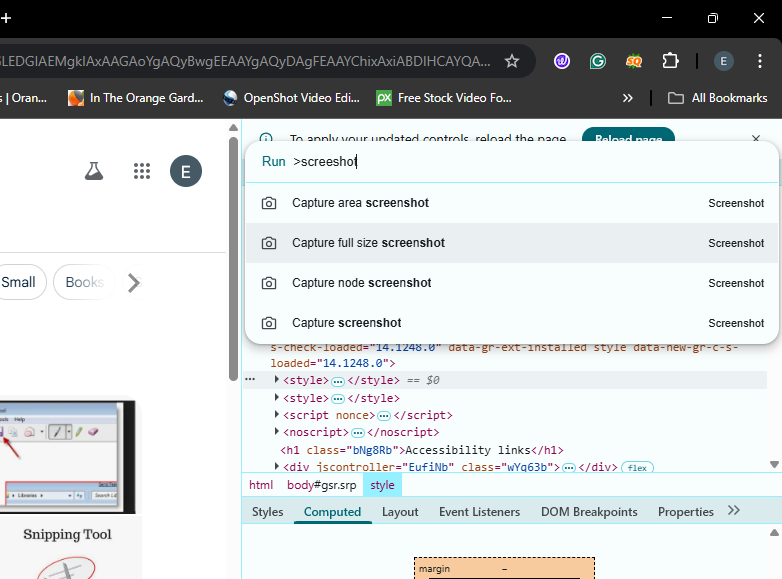
You’ll see an option that says “Capture full size screenshot”. Click on it.
Boom! Your browser will automatically download a full-page screenshot of the webpage as a PNG image in your default downloads folder. This is a quick and efficient way to get a complete screen capture without relying on third-party software.
Why is This Useful?
- No Extra Software: You don’t need to install any browser extensions, keeping your browser clean and potentially improving performance, especially on slower internet connections common in some parts of India.
- Quick and Easy: Once you know the shortcut, it’s a very fast way to grab full-page captures.
- Reliable: It’s a built-in browser feature, so it’s generally reliable.
Snipping Tool Still Has Its Place
While this trick is great for full-page captures, the Snipping Tool remains incredibly useful for grabbing specific sections of your screen quickly. Think of it as your go-to for targeted screen capture needs. Use it for:
- Capturing a specific window, perfect for sharing application interfaces.
- Drawing freeform snips, ideal for highlighting unusual shapes on your screen.
- Rectangular snips of selected areas, the classic and most common use case.
The Best of Both Worlds
By combining the power of the Snipping Tool for targeted captures and the hidden full-page screenshot feature in your browser’s developer tools, you’re well-equipped to handle any screenshotting need without cluttering your browser with extra extensions. This is a valuable skill for anyone working online in India, whether you’re a student, professional, or just browsing the web.
What’s Your Favorite Screen Capture Method?
We’d love to hear from you! What’s your go-to method for taking screenshots? Have you tried this developer tools trick before? Share your tips and experiences in the comments below!
